
AudioFuse
Studio update
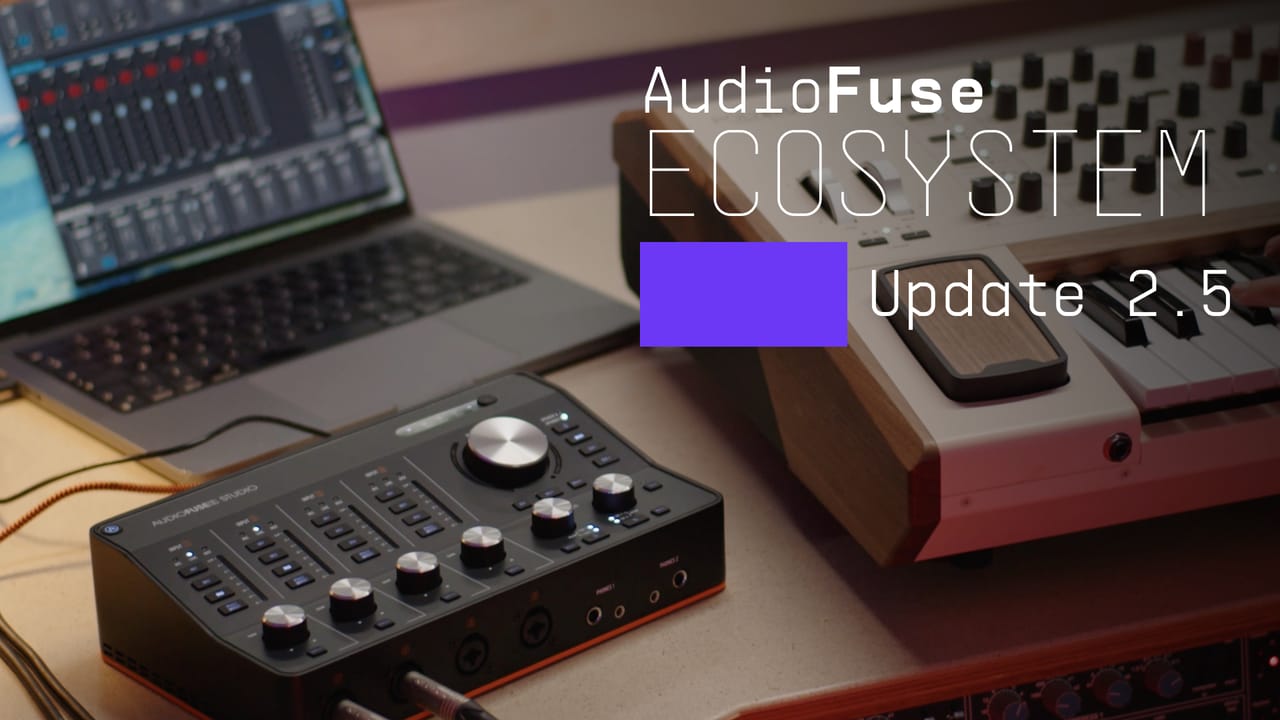
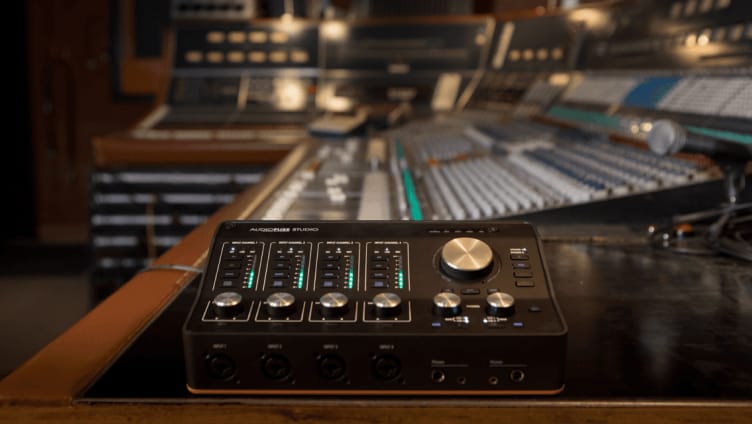
AudioFuse Studio continues to evolve with new routing options, workflow refinements and performance improvements delivered through regular firmware updates.
More flexible routing
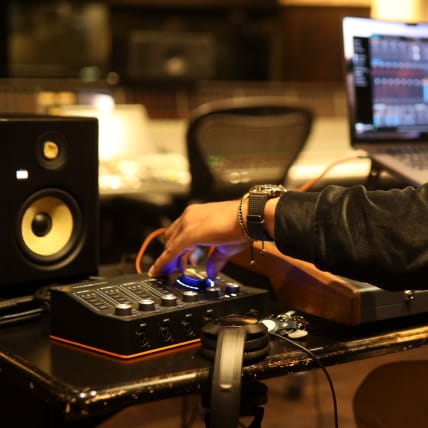
Route a wider range of sources to the Aux and ADAT outputs, giving you greater freedom to configure recording, monitoring and hardware workflows.
Refined S/PDIF monitoring
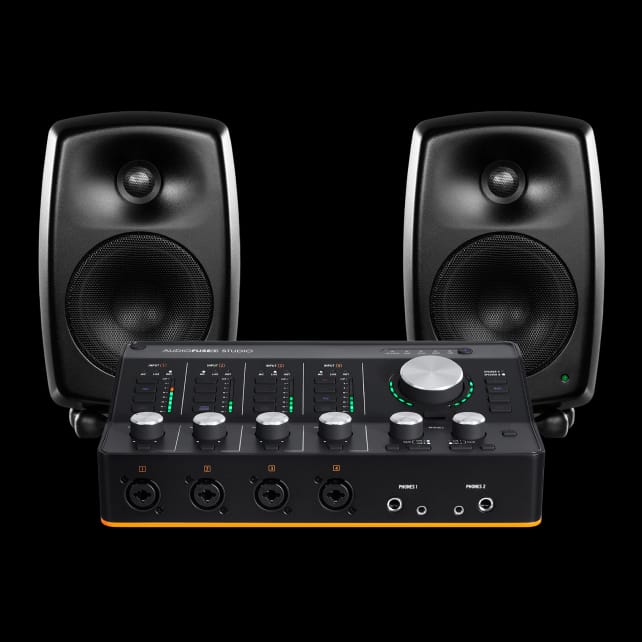
The S/PDIF Speaker source is now assigned to Speaker B and placed post-fader, allowing its output to follow your Speaker B level control.
Unified clocking and stability
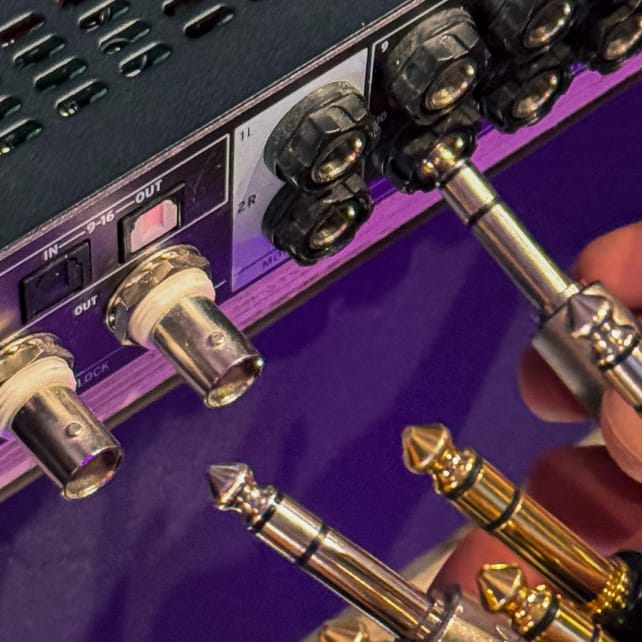
An updated clocking system brings logic and control in line with AudioFuse 16Rig, alongside stability improvements for smoother, more dependable operation.
AudioFuse Control
Center 2.5.0
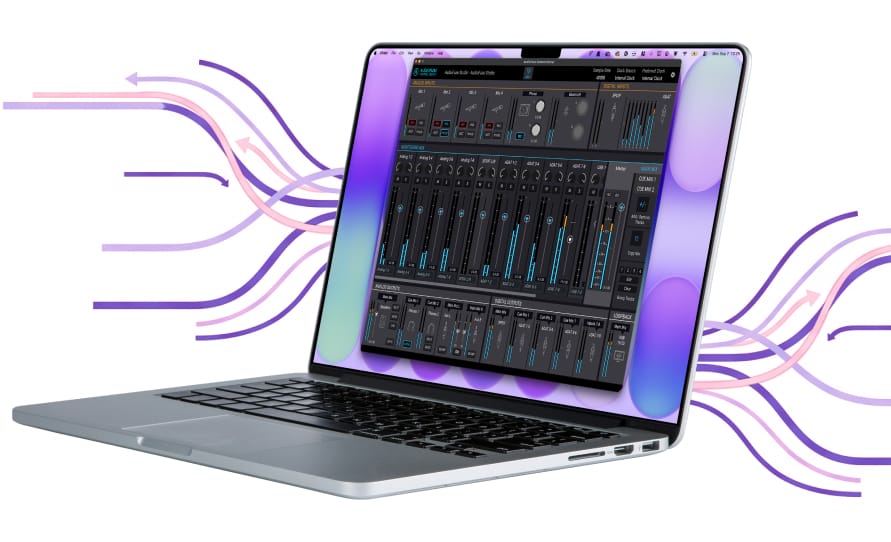
AFCC 2.5.0 expands AudioFuse Studio with device-state Import/Export, letting you back up and restore your current setup. Refined clock management and routing offer greater flexibility, while the Open HTTP API enables custom remote-control workflows.
Clearer input naming, refined ADAT channel behavior and firmware mismatch protection also make everyday setup more consistent and dependable.
Previously added in
firmware 1.0.7
Firmware 1.0.7 introduced Force Double SMUX mode and improved ADAT synchronization at 88.2 and 96 kHz with certain third-party devices. It also restored Ground Lift control and addressed analog output noise across USB and Bluetooth workflows.
How to update your
AudioFuse firmware
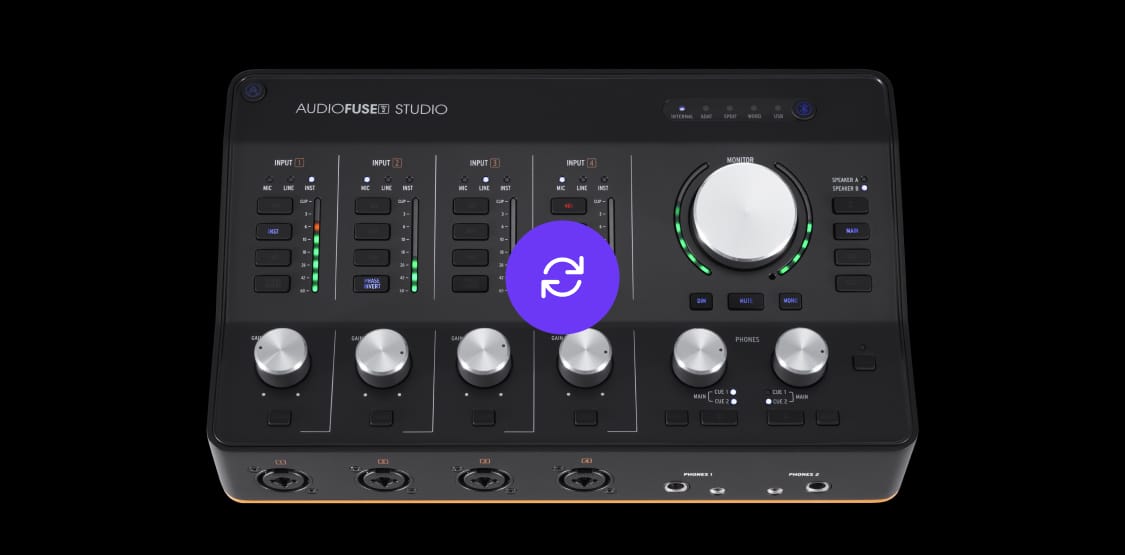
Il ne vous faudra que quelques secondes pour mettre le firmware à jour.
- Install the latest version of the AudioFuse Control Center
- Switch on your AudioFuse Studio and connect to your computer
- Launch AudioFuse Control Center
- Click the settings at the top right of AudioFuse Control Center
- Click Upgrade to Latest button and follow on-screen instructions