Schnelleinstieg
Diese Seite führt dich durch alle notwenigen Schritte, um mit deinem Produkt direkt loslegen zu können.
1. Lade und installiere das Arturia Software Center (ASC)
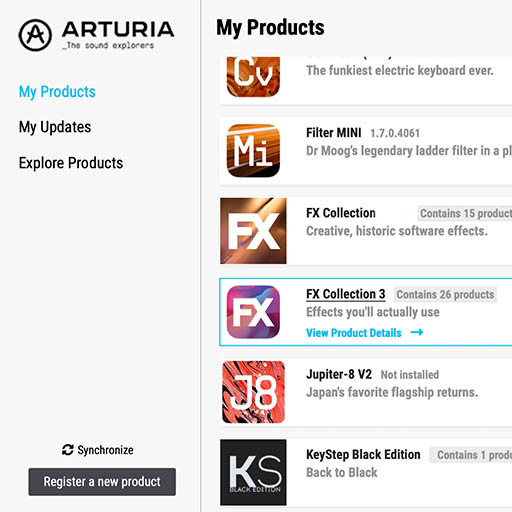
Mit dem Arturia Software Center (ASC) kannst du deine virtuellen Arturia-Instrumente auf deinen Computern installieren, aktivieren und auch aktualisieren.
Hier kannst du auf deine Arturia-Software zugreifen, sowie Demo-Versionen für andere Software-Produkte aus unserem Arturia-Katalog laden.
2. Log dich in das Arturia Software Center ein
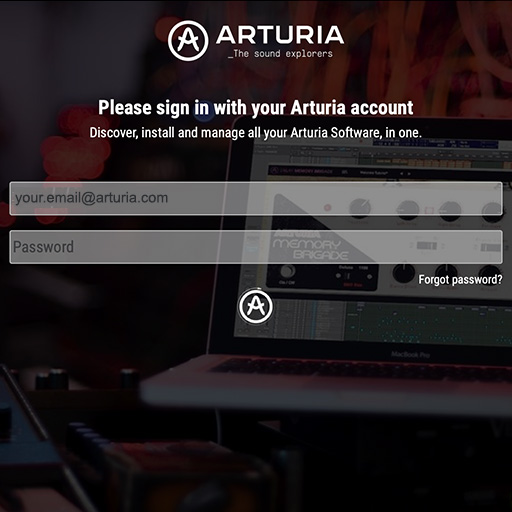
Gib die gleiche E-Mail-Adresse und das gleiche Passwort ein wie bei deinem Arturia-Konto.
Du findest dann deine Produktlizenz im Hauptfenster.
Wenn du noch kein Arturia-Konto hast, klick auf "Create Account" und folge den Anweisungen, um ein neues Konto anzulegen.
Wenn du einen Offline-Computer verwendest, befolge bitte die Schritte, wie beschrieben in dieser Artikel
Wenn du deine Software-Lizenz auf der Arturia-Website erworben hast, wurde diese automatisch in deinem Konto registriert. Klick ansonsten oben im Hauptfenster auf die Schaltfläche “Register a new product”.
3. Installiere und aktiviere dein Produkt im ASC
Such in der Liste nach deinem Produkt und klick auf die Schaltfläche „Install“, um den Installationsprozess zu starten.
Du wirst zuerst aufgefordert, den Zielordner zu definieren.
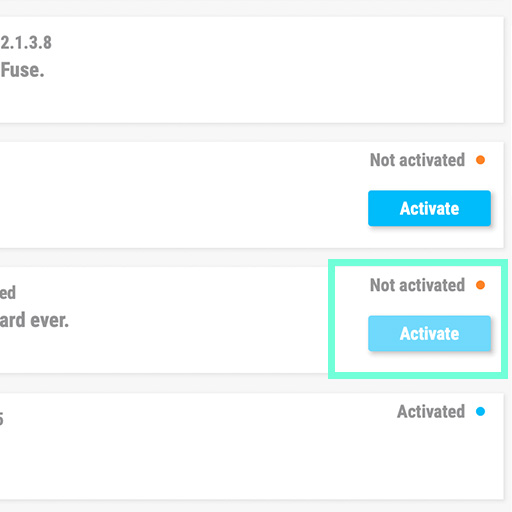
Dein Produkt verbleibt solange im Demo-Modus, bis es aktiviert wird.
Klick dazu auf die Schaltfläche „Activate“. Dein brandneuer Effekt wird dann aktiviert.
Du kannst die Software jetzt ohne Einschränkung auf bis zu fünf verschiedenen Computern gleichzeitig verwenden. Wiederhole dazu diesen Vorgang auf deinen anderen Computern.
4. Launch Your Product
Your product is not available as a standalone software.
It must be used in a DAW (Digital Audio Workstation).
Click on the icons to see how to select and use your new effect in the most popular DAWs:
Discover, experiment, enjoy!
 ABLETON LIVE
 BITWIG
 CUBASE
 FL STUDIO
 LOGIC PRO X
 PRO TOOLS
 STUDIO ONE
 Digital Performer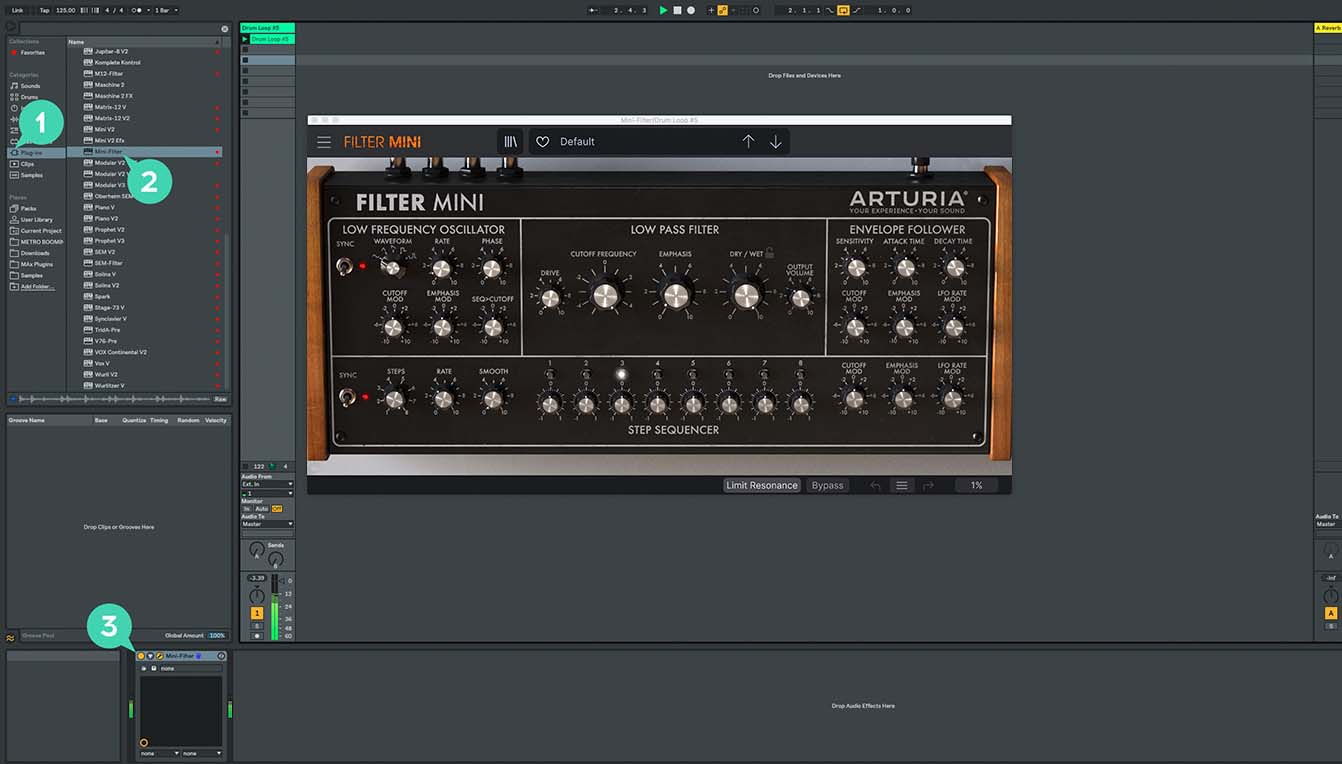
For Ableton Live
1/ Open the Live browser, and click on the 'Plug-ins' section.
2/ In the VST or Audio Unit* folder, browse the virtual effect of your choice.
3/ Drag & drop it in your track or FX return.
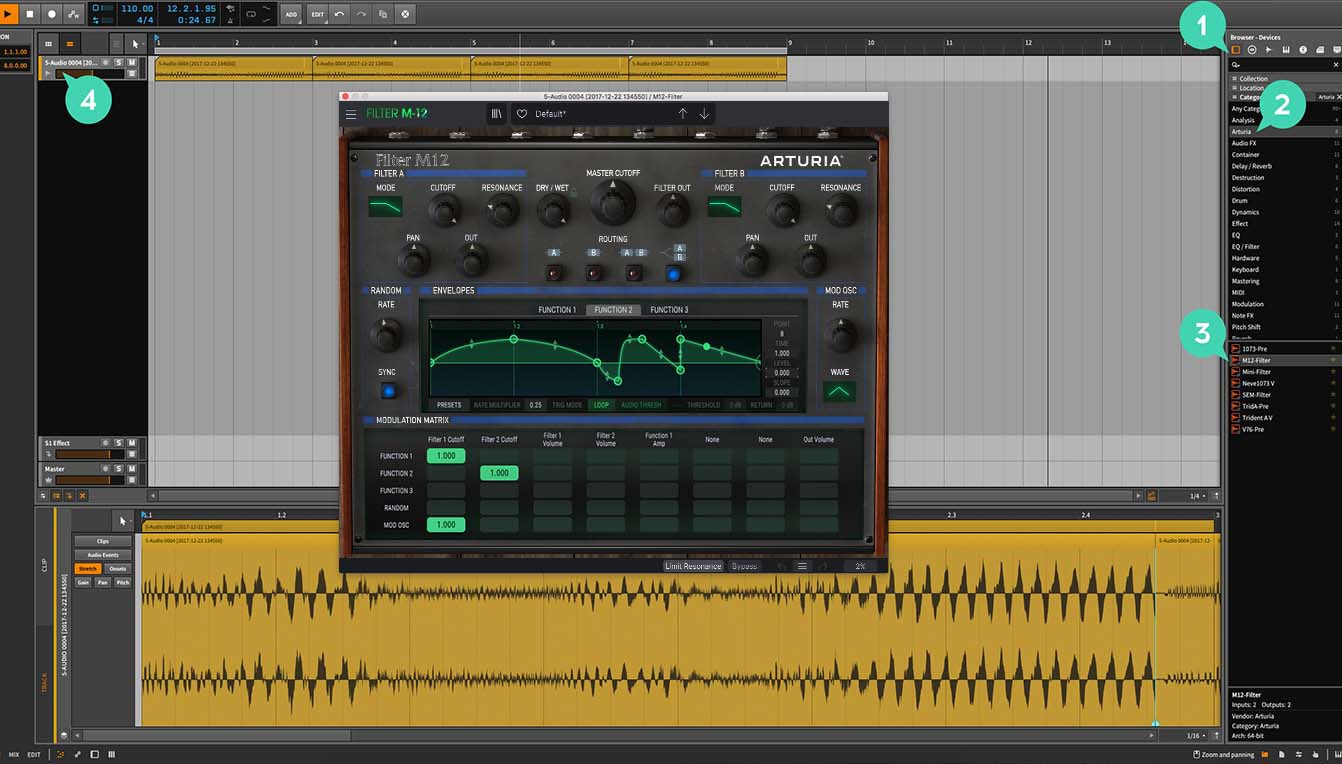
For Bitwig
1/ In Bitwig browser, select the devices section and click on the category tab.
2/ Select the Arturia category.
3/ On the bottom of the browser will appear the available Arturia devices.
4/ Drag & drop the virtual effect on your track.
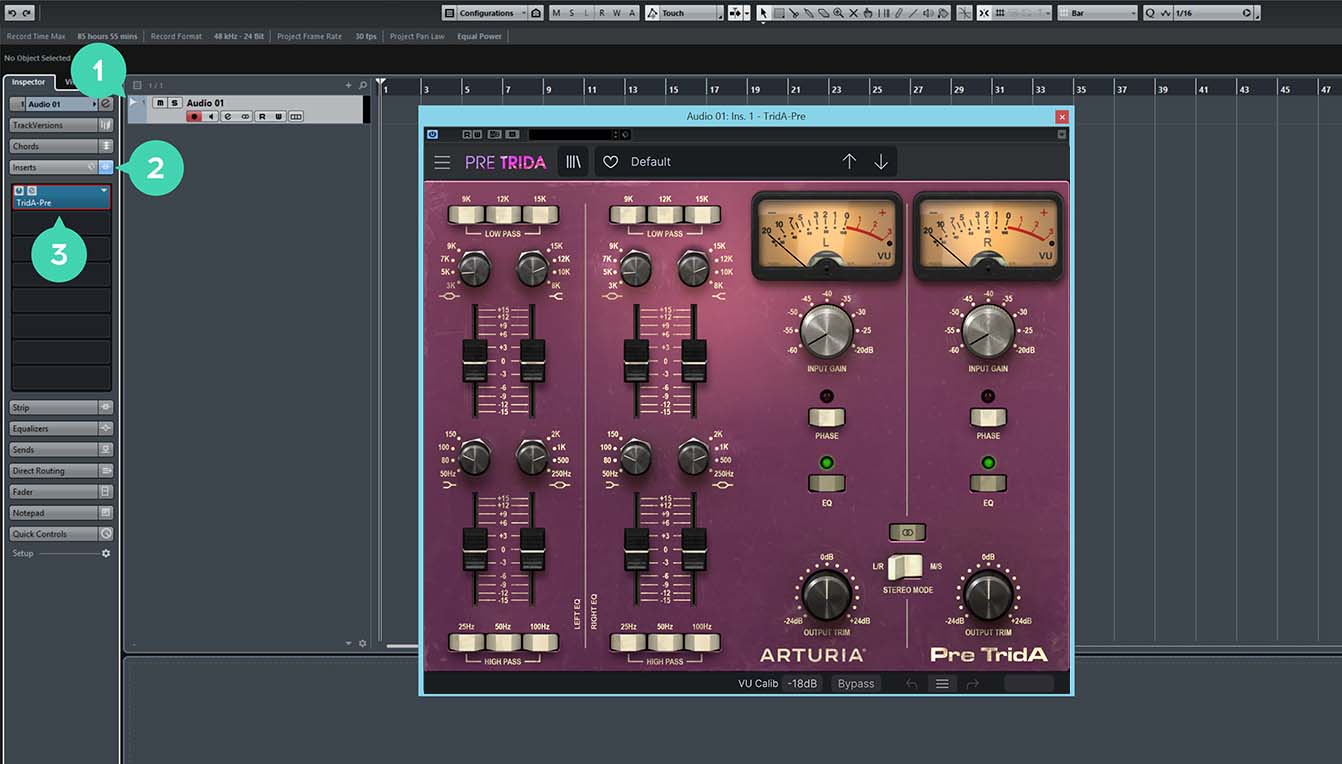
For Cubase
1/ Select a track
2/ In the Inspector, open the Audio Insert tab
3/ Click on an empty slot and select the virtual effect of your choice
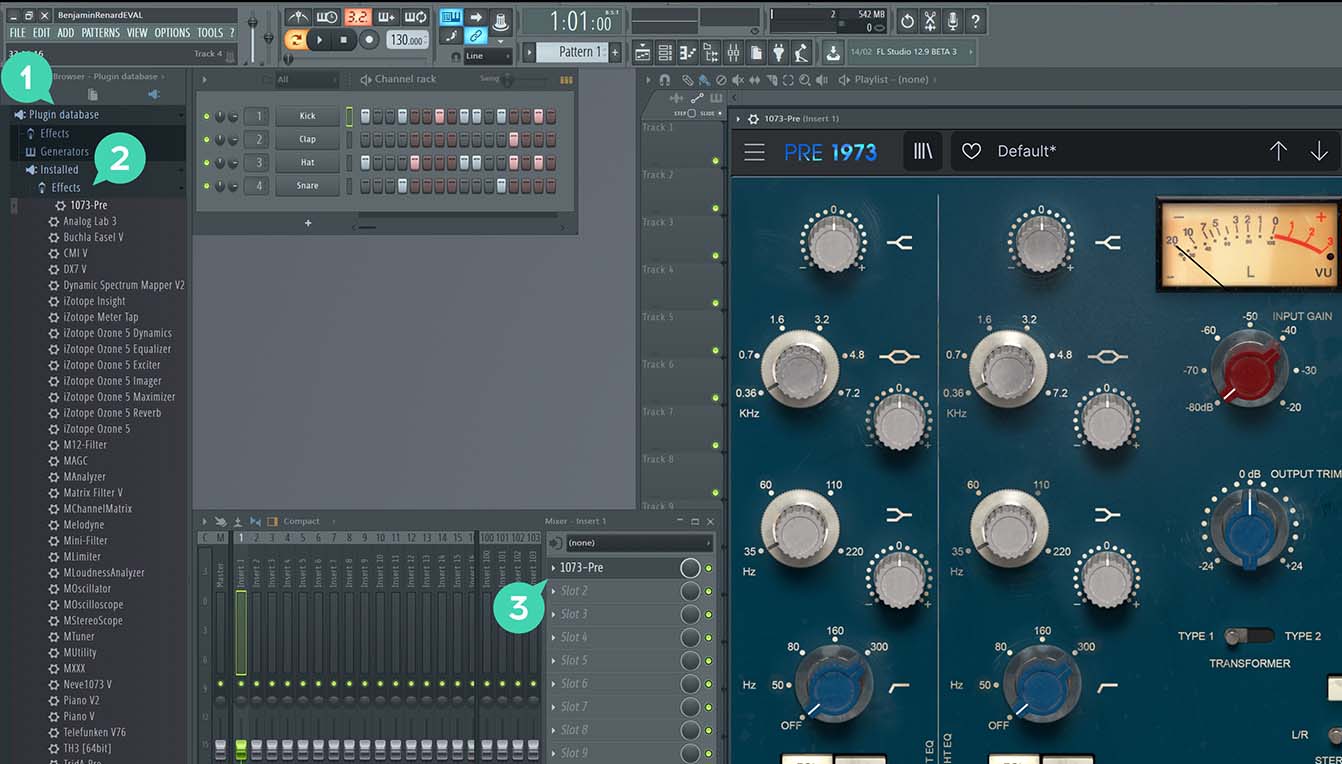
For FL Studio
1/ In FL Studio browser open the Plugin Database folder.
2/ in the Effect section, select the effect of your choice.
3/ Drag & Drop it in one of your mixer effect insert.
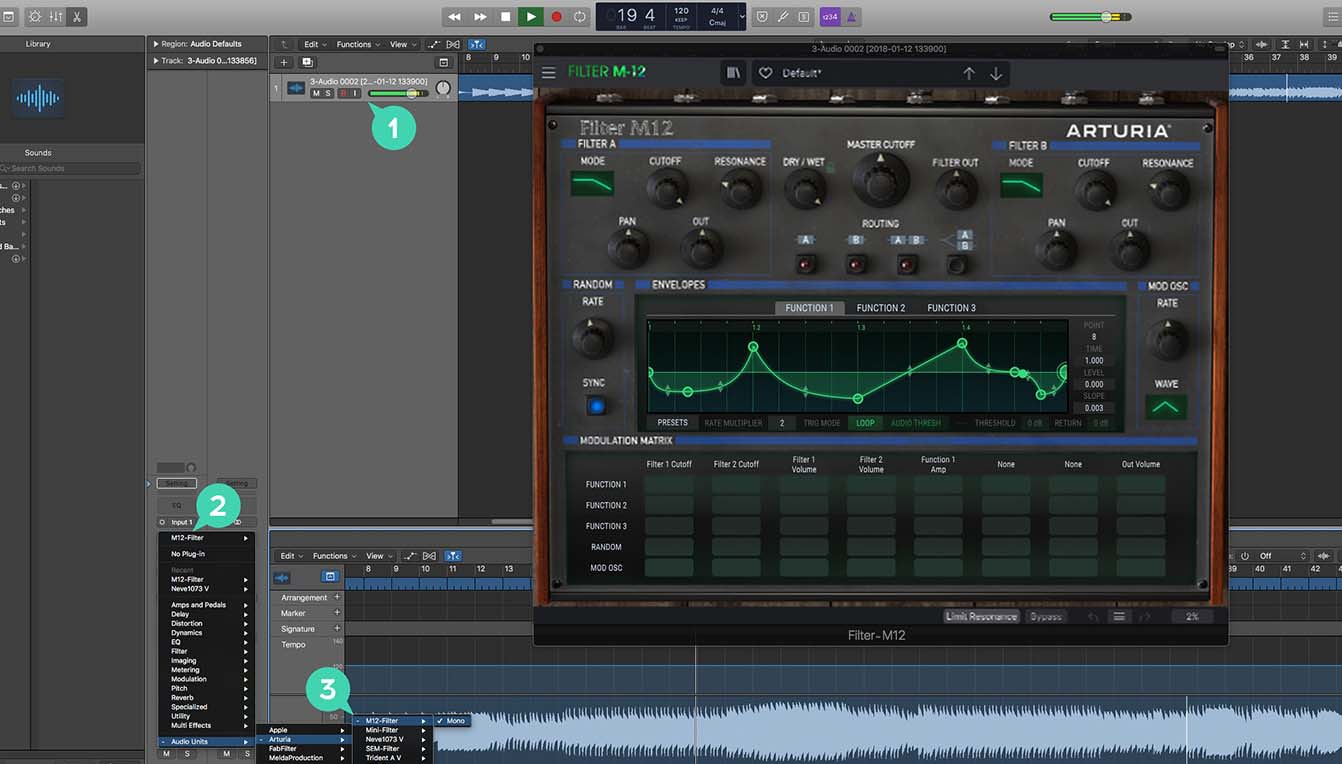
For Logic Pro X
1/ Select a track, or a bus.
2/ Under Settings, EQ & Input, click on the Audio FX tab.
3/ In Audio Units > Arturia > Select the virtual effect your want to add.
More info here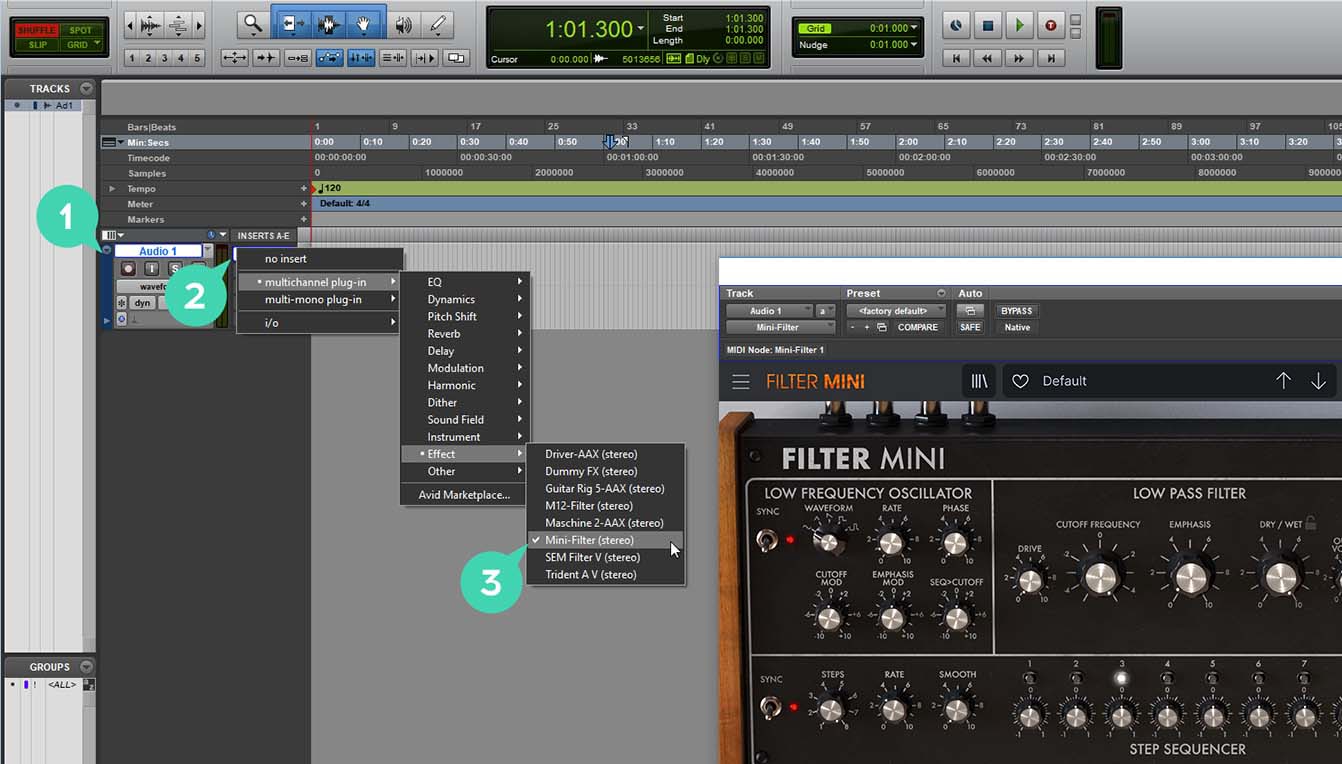
For Pro Tools
1/ Select a Track.
2/ Click on one of the Inserts A-E tabs.
3/ In multichannel plug-in > Effect select the virtual effect of your choice to add it to your insert.
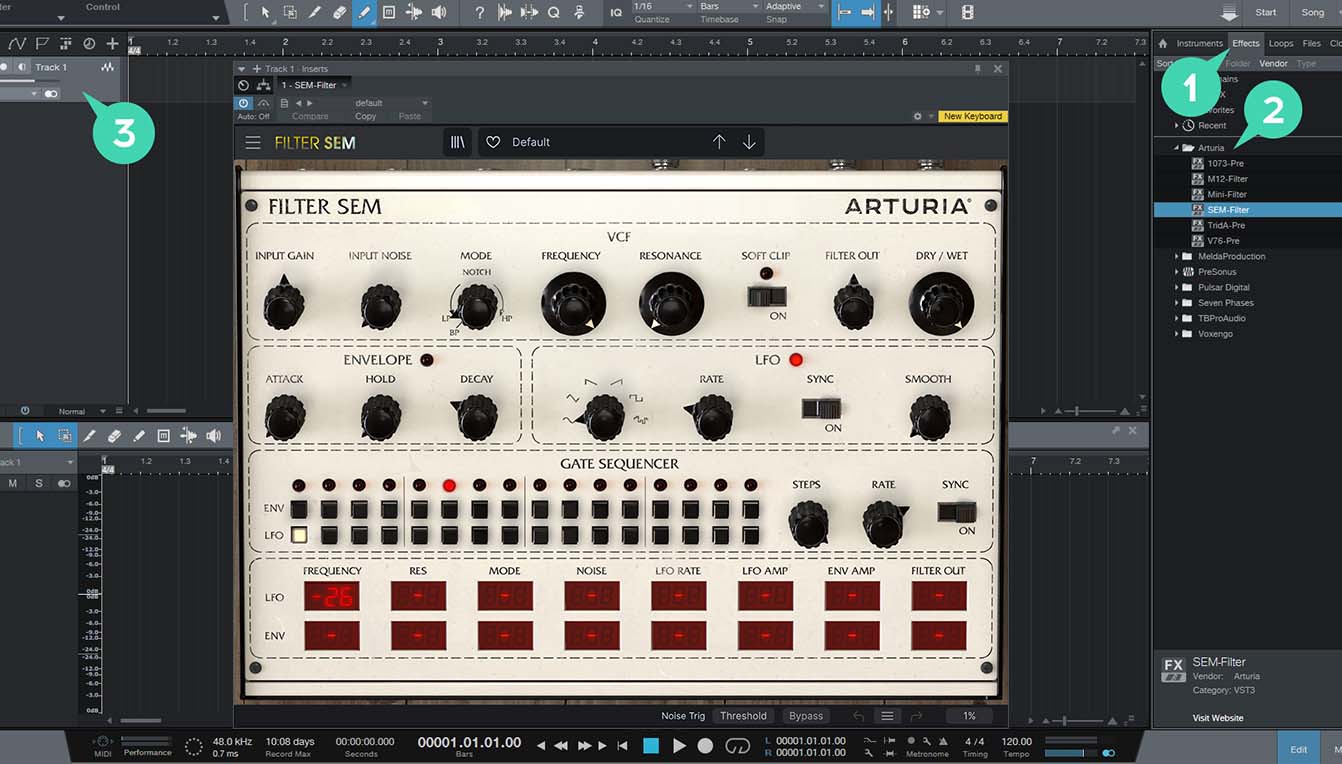
For Studio One
1/ Go the the browser on the right and click the Effects Tab.
2/ Open the Arturia folder and locate the virtual effect your want to use.
3/ Drag & Drop it on your track.
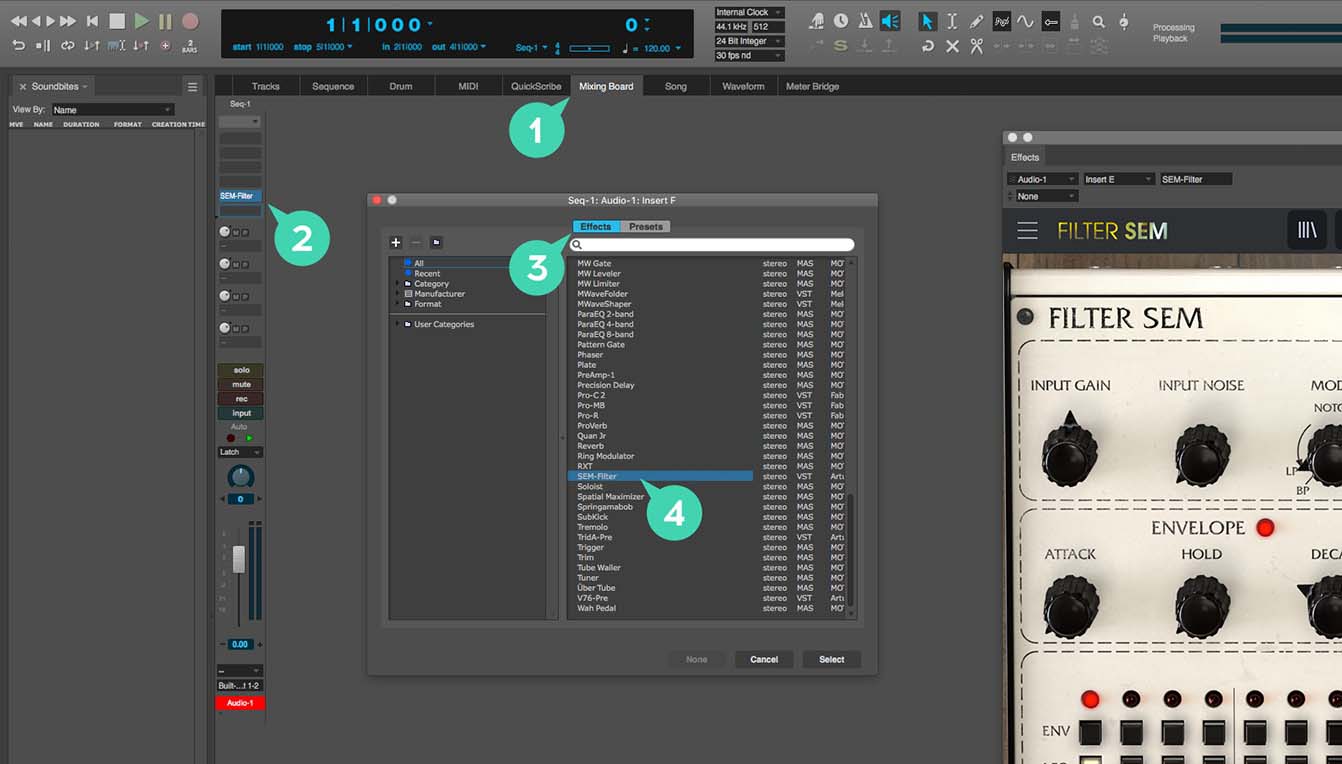
For Digital Performer
1/ Go to the Mixing Board Tab.
2/ Select a track, and on the top of it, click one of the empty inserts slots.
3/ Open the effect Tab.
4/ Select the virtual effect of your choice and click select to add it to your track.
Discover what you can do with it
Manuals & Installers
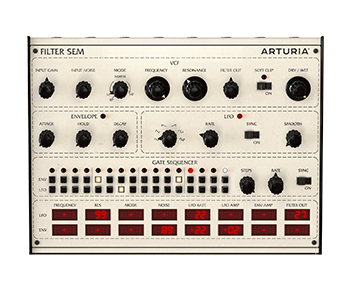
Filter SEM
Handbücher
| Name | Datum | Größe | Version | Download |
|---|---|---|---|---|
Jul 23, 2021 | 4.83 MB | 1.2.1 | ||
Jul 22, 2021 | 4.19 MB | 1.2.1 | ||
Jul 22, 2021 | 4.18 MB | 1.2.1 | ||
Jul 22, 2021 | 4.17 MB | 1.2.1 | ||
Jul 22, 2021 | 4.2 MB | 1.2.1 |
Software
| Plattform | Name | Datum | Größe | Version | Information | Download |
|---|---|---|---|---|---|---|
NEWFilter SEM | Feb 6, 2026 | 365.78 MB | 1.8.1.6566 | |||
NEWFilter SEM | Feb 6, 2026 | 245.14 MB | 1.8.1.6566 |
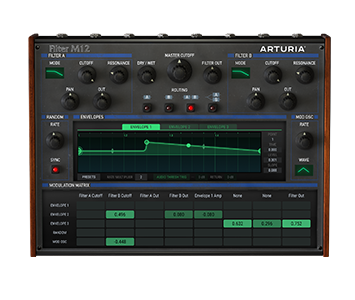
Filter M12
Handbücher
| Name | Datum | Größe | Version | Download |
|---|---|---|---|---|
Feb 11, 2020 | 3.7 MB | 1.2.0 | ||
Feb 11, 2020 | 3.74 MB | 1.2.0 | ||
Feb 11, 2020 | 3.74 MB | 1.2.0 | ||
Feb 11, 2020 | 3.73 MB | 1.2.0 | ||
Feb 11, 2020 | 16.02 MB | 1.2.0 |
Software
| Plattform | Name | Datum | Größe | Version | Information | Download |
|---|---|---|---|---|---|---|
NEWFilter M12 | Feb 6, 2026 | 341.23 MB | 1.8.1.6566 | |||
NEWFilter M12 | Feb 6, 2026 | 224.36 MB | 1.8.1.6566 |
EQ SITRAL-295
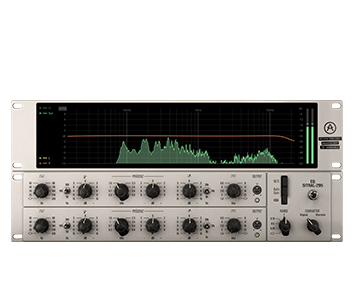
Handbücher
| Name | Datum | Größe | Version | Download |
|---|---|---|---|---|
Jun 29, 2021 | 24.57 MB | 1.0 | ||
Jun 29, 2021 | 24.56 MB | 1.0 | ||
Jun 29, 2021 | 24.58 MB | 1.0 | ||
Jun 22, 2021 | 25.21 MB | 1.0 | ||
Jun 8, 2021 | 24.55 MB | 1.0 |
Software
| Plattform | Name | Datum | Größe | Version | Information | Download |
|---|---|---|---|---|---|---|
Feb 6, 2026 | 355.54 MB | 1.4.1.6566 | ||||
Feb 6, 2026 | 233.61 MB | 1.4.1.6566 |
Filter MINI
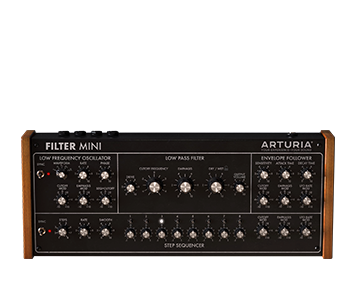
Handbücher
| Name | Datum | Größe | Version | Download |
|---|---|---|---|---|
Jul 23, 2021 | 5.62 MB | 1.3.0 | ||
Jul 22, 2021 | 4.95 MB | 1.3.0 | ||
Jul 19, 2021 | 4.95 MB | 1.3.0 | ||
Jul 19, 2021 | 4.94 MB | 1.3.0 | ||
Jul 19, 2021 | 4.97 MB | 1.3.0 |
Software
| Plattform | Name | Datum | Größe | Version | Information | Download |
|---|---|---|---|---|---|---|
NEWFilter MINI | Feb 6, 2026 | 350.27 MB | 1.9.1.6566 | |||
NEWFilter MINI | Feb 6, 2026 | 231.43 MB | 1.9.1.6566 |
Du benötigst weitere Hilfe?
Unser Support-Team hilft dir gerne weiter bei Fragen zum Einsatz von Arturia-Instrumenten. Du kannst uns über diese Seite kontaktieren:
Nach Hilfe fragen →