
Efx AMBIENT
Dreamlike processor
1. Download & install the Arturia Software Center (ASC)
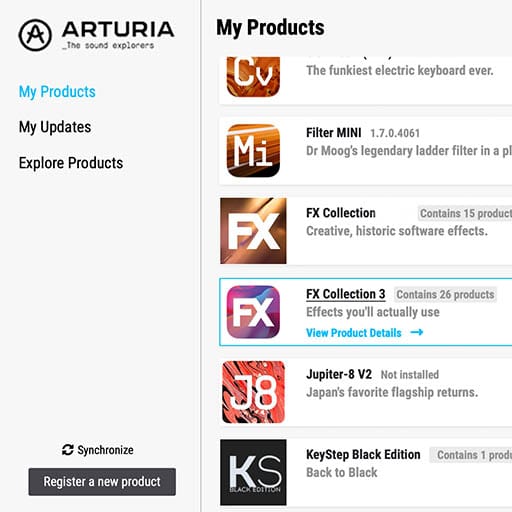
The Arturia Software Center (aka ASC) lets you activate, install and update your Arturia virtual instruments on your computers.
It will let you access the software you own as well as demos of the other titles in the Arturia catalog.
2. Log into the Arturia Software Center
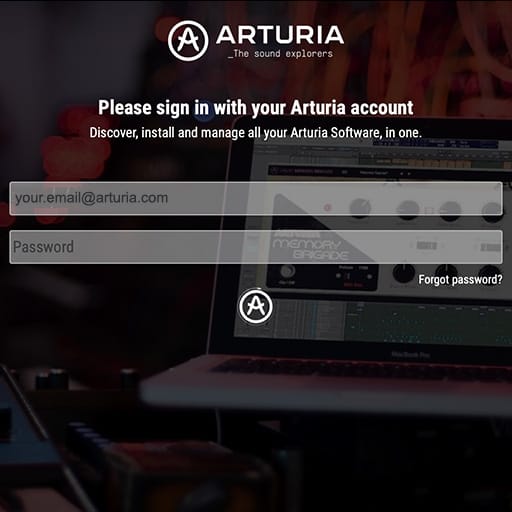
Enter the same email address and password as for your My Arturia account. You will then be able to find your Product License on the main panel.
If you don’t have a My Arturia account, click on create account and follow the process to create one.
If you're using an offline computer, please follow the process described in this this article
If you have purchased your software license on the Arturia website, it has been automatically registered into your account. Otherwise click on the button “Register a new product” on top of the main window.
3. Install and Activate your product through the ASC
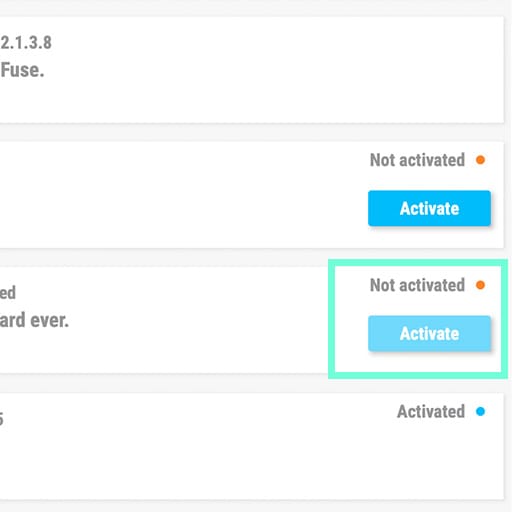
Look for your product in the list and click on the “Install” button to launch the silent installation process.
You will be asked to define the destination folders on the first time.
Your product will remain in demo mode until it is activated. To do so click on the “Activate” button. Your brand new effect will now be activated.
You are now able to use it without restriction on up to 5 different computers simultaneously. To do that, repeat this operation on your other computers.
4. Launch Your Product
Your product is not available as a standalone software.
It must be used in a DAW (Digital Audio Workstation).
Click on the icons to see how to select and use your new effect in the most popular DAWs:
Discover, experiment, enjoy!

Ableton Live

Bitwig

Cubase

FL Studio
Logic Pro X

Pro Tools

Studio One
Digital Performer
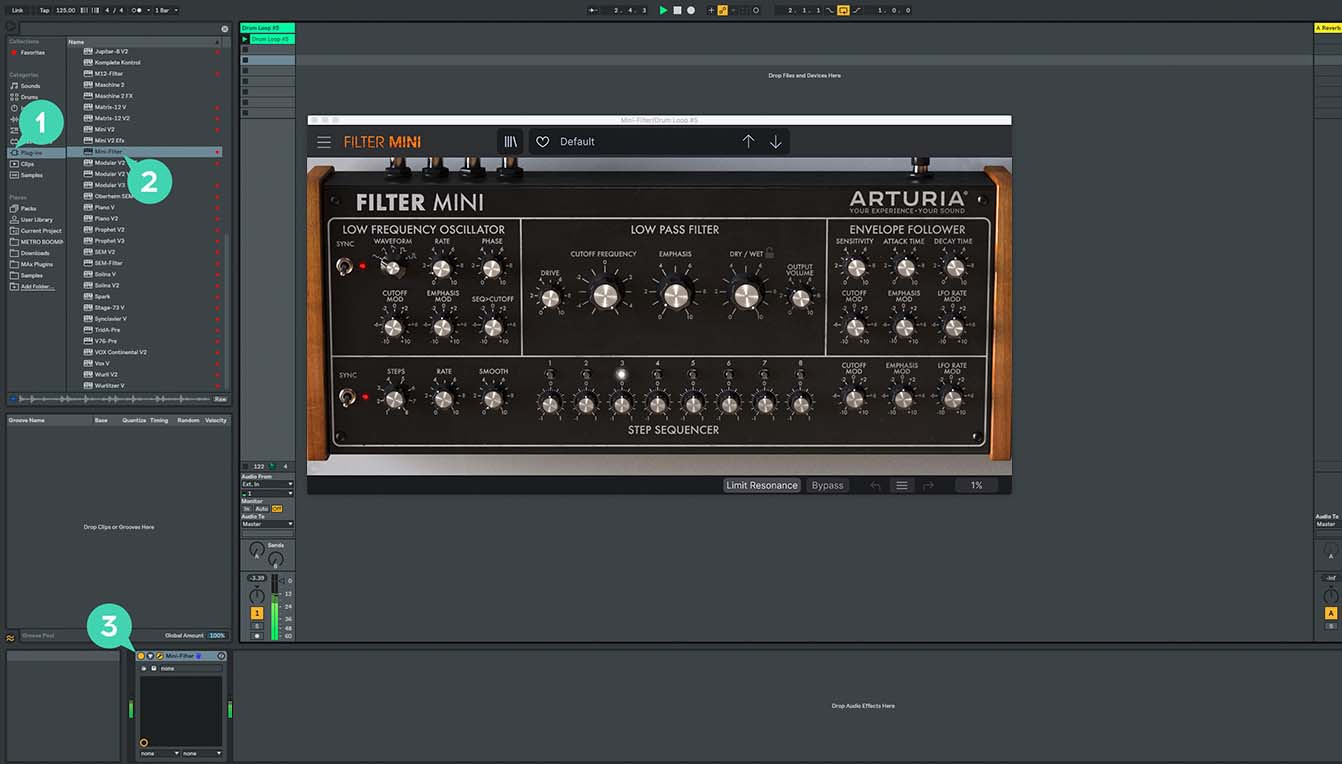
For Ableton Live
1/ Open the Live browser, and click on the 'Plug-ins' section.
2/ In the VST or Audio Unit* folder, browse the virtual effect of your choice.
3/ Drag & drop it in your track or FX return.
Efx AMBIENT
Tutorials
Tutorials | Efx AMBIENT | Overview
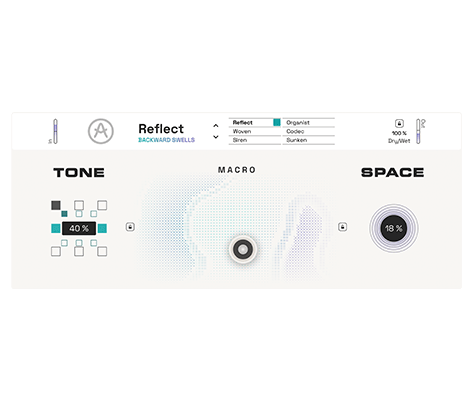
Join Alex for a run-down of Efx AMBIENT, exploring its expressive 2D Macro control, six distinct modes, shared Tone and Space shaping, and the deeper Advanced features - including modulation sources, macro assignments, and utility controls - designed to turn simple sounds into endlessly evolving atmospheres.
Tutorials | Efx AMBIENT | Track Breakdown w/Øneheart
Join Alex for a track breakdown with producer Øneheart, showing how Efx AMBIENT can shape atmosphere, motion, and emotional depth across an arrangement. Learn how multiple instances and automations transform plucks, pads, bass, and texture layers, from grainy reflect textures and degraded colour to wide transitions and washed ambience.
Need more help ?
Our support team is happy to help you with questions on how to use Arturia instruments. You can contact them from this page :
Ask for help